An activity code within a specific event.
Organisers generate QR codes for event stations. Each scan identifies the activity and event before the scoring path evaluates the participant’s request.
QR check-ins, live rankings and event prize draws.
A platform for American Red Cross events: participants check in to activities with QR codes, follow their progress and see the shared results. The original edition awards points; Raffle Edition connects activity participation with prize-draw entries and an organiser-controlled reveal.
Raffle Edition adds activity limits, waiting periods and a confirmed draw to the event workflow. Badge PINs identify participants; the administration workspace connects eligibility and prize setup with a retained winner record.
The mobile workspace keeps personal activity totals beside the shared ranking. Participants can check their own progress and continue through the event leaderboard from the same screen.
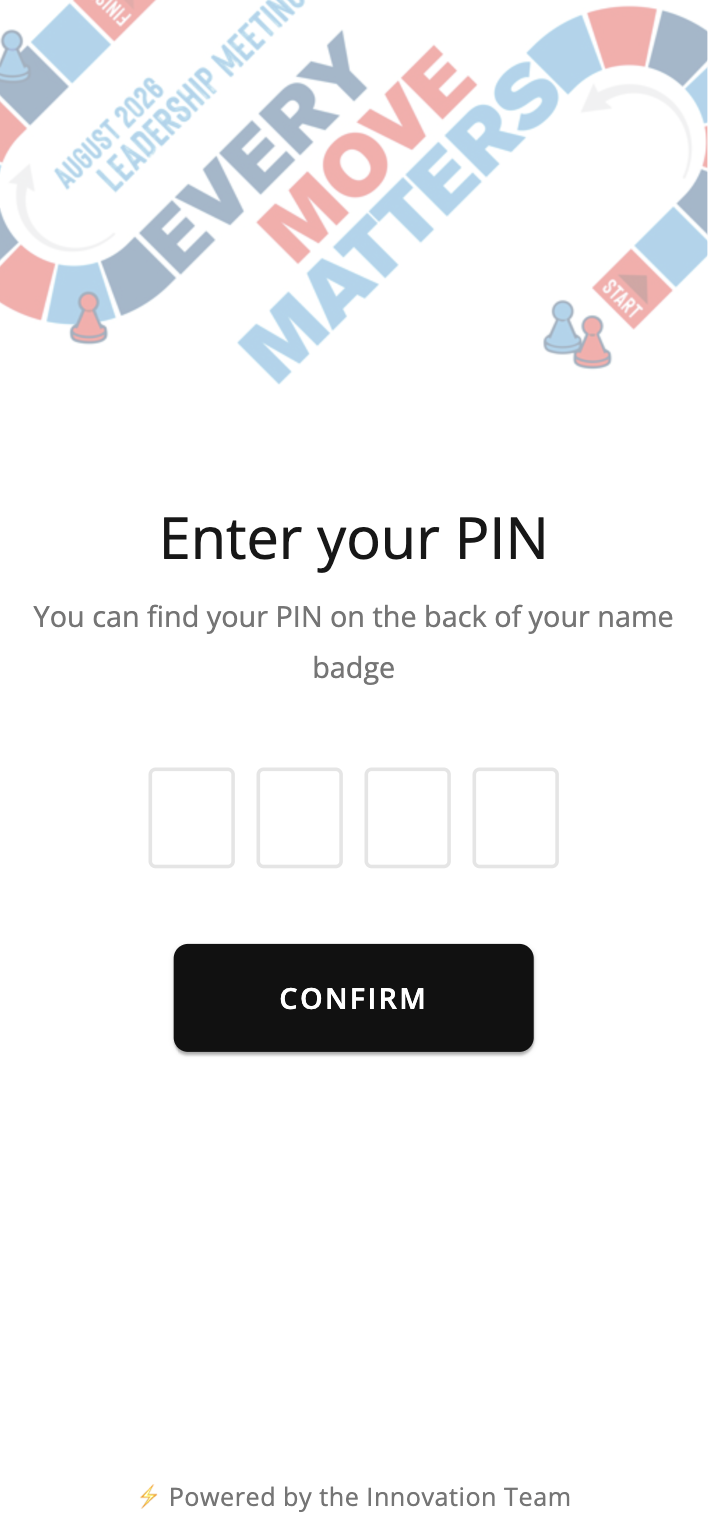
Four PIN fields connect the attendee to their event profile before they join an activity.
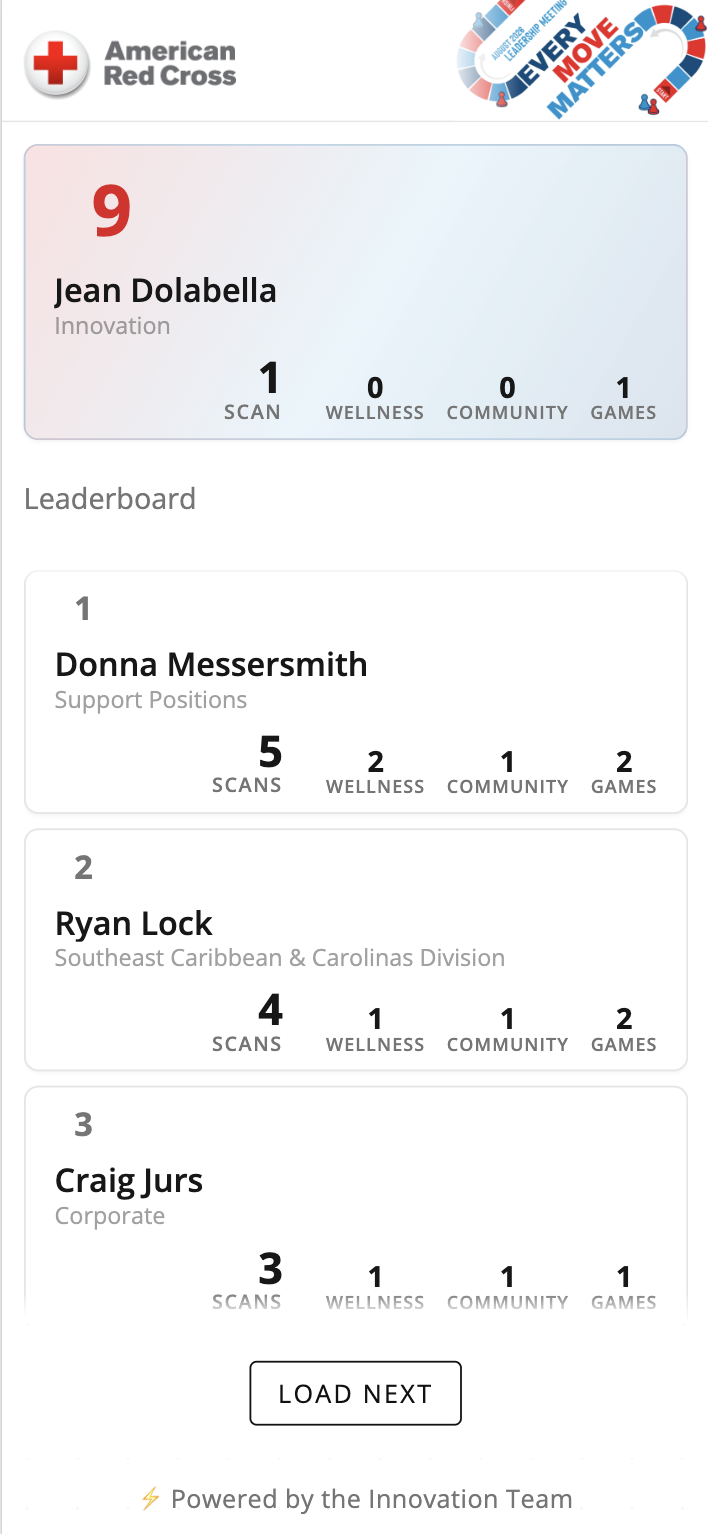
The personal card shows the attendee’s position and scans across wellness, community and games, followed by the shared leaderboard.
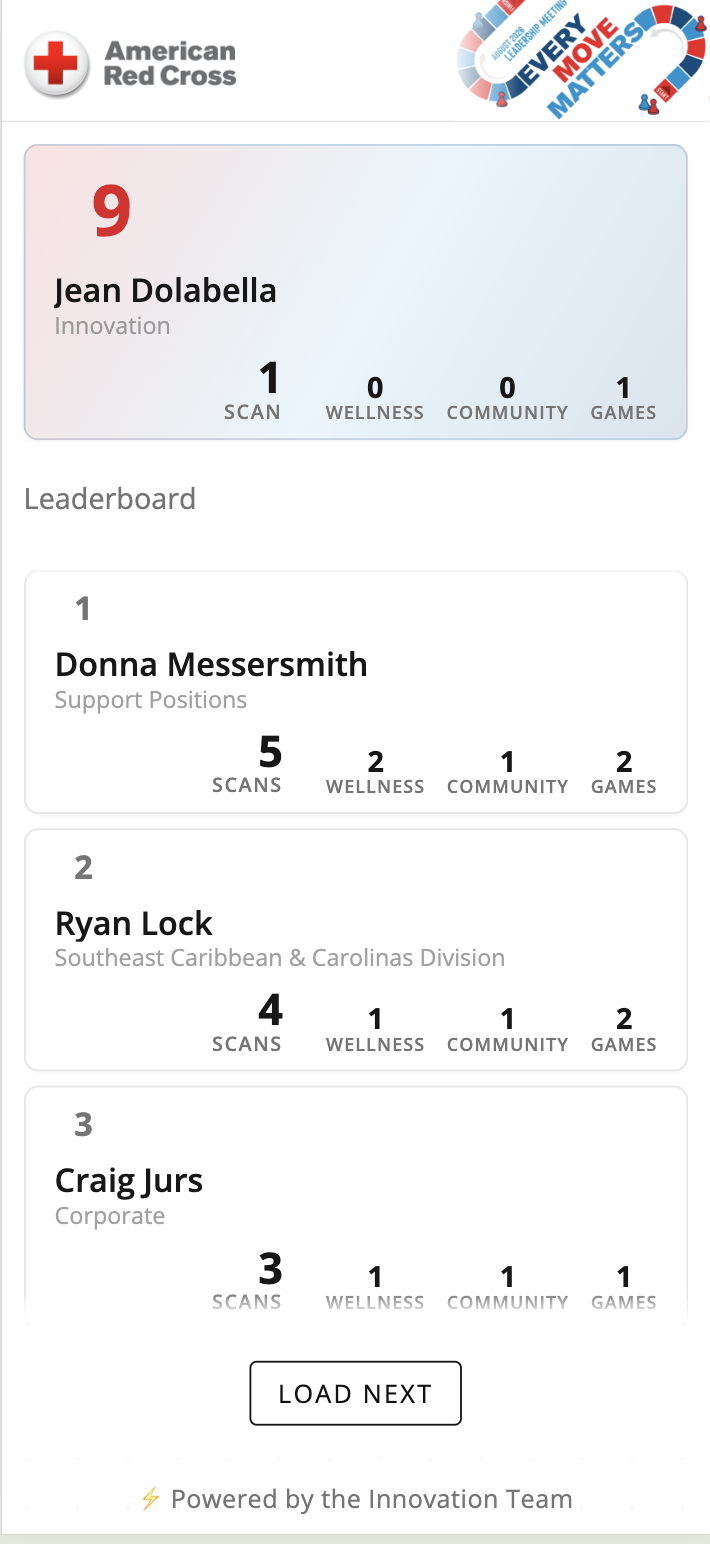
Participant cards combine name, department and activity totals. The load-next control continues the list on the phone.
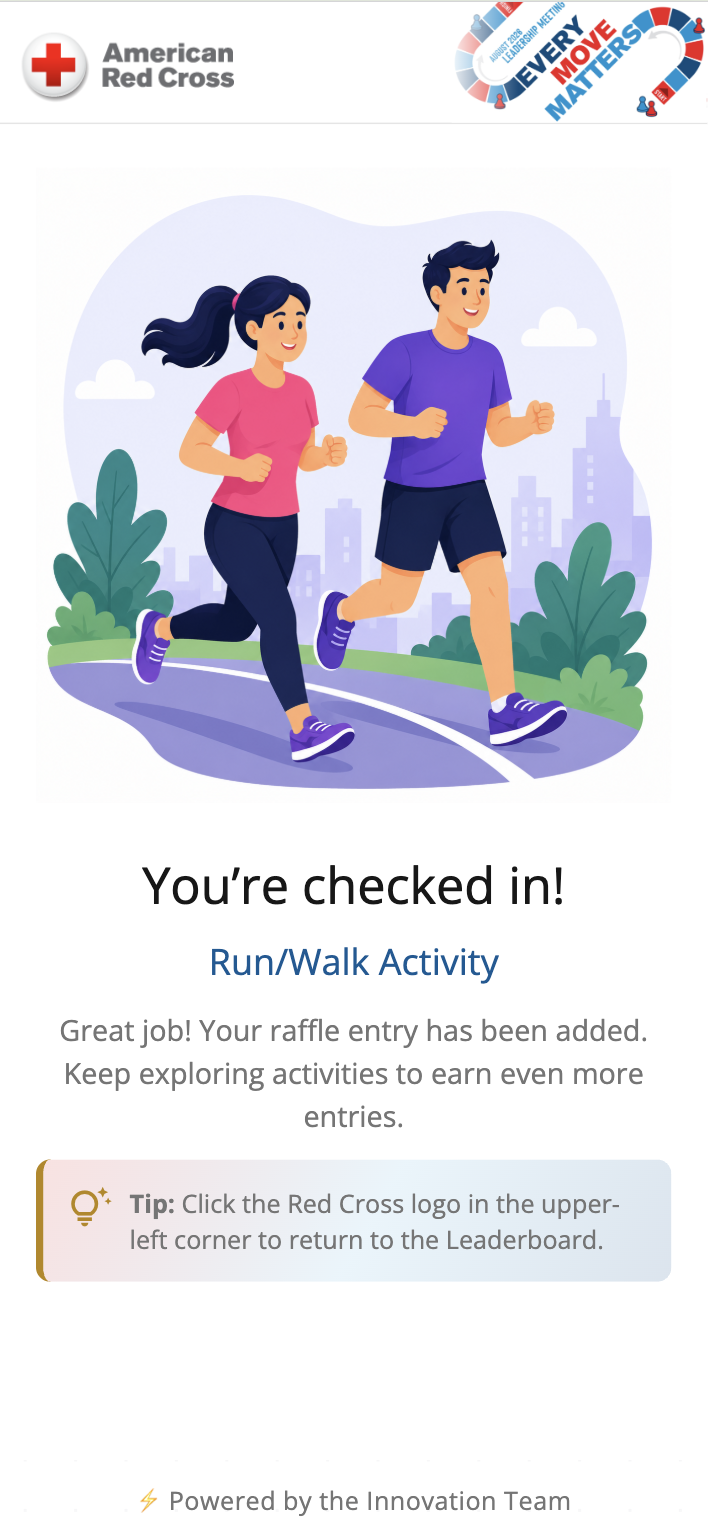
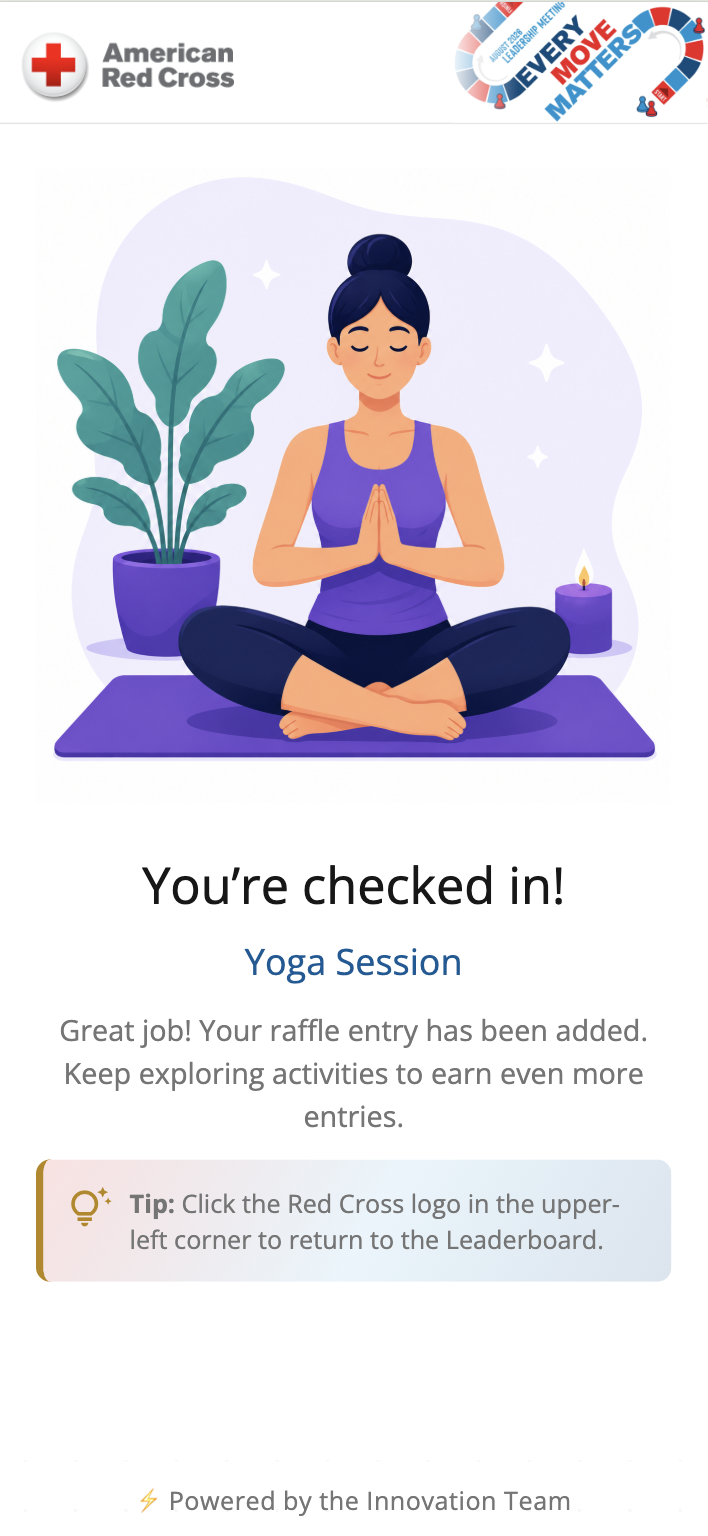
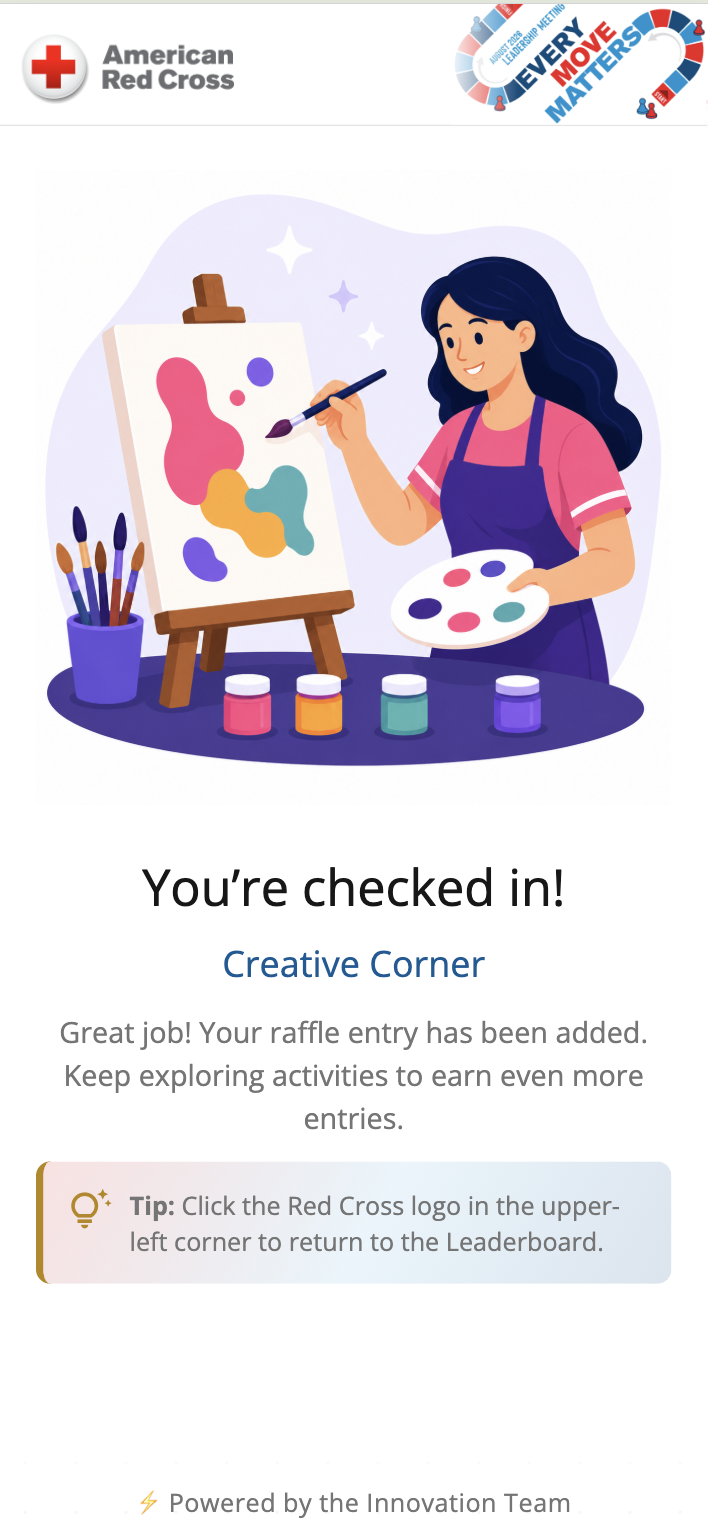
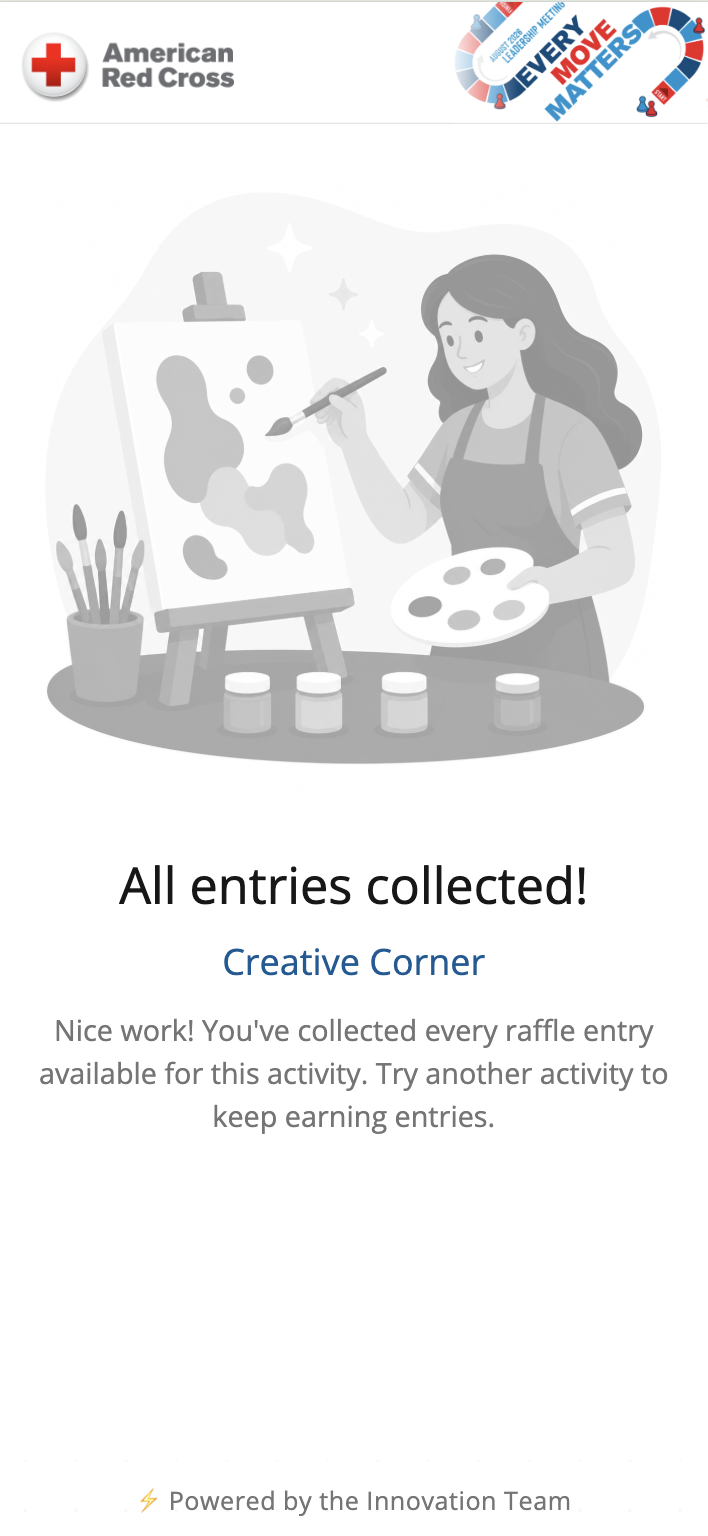
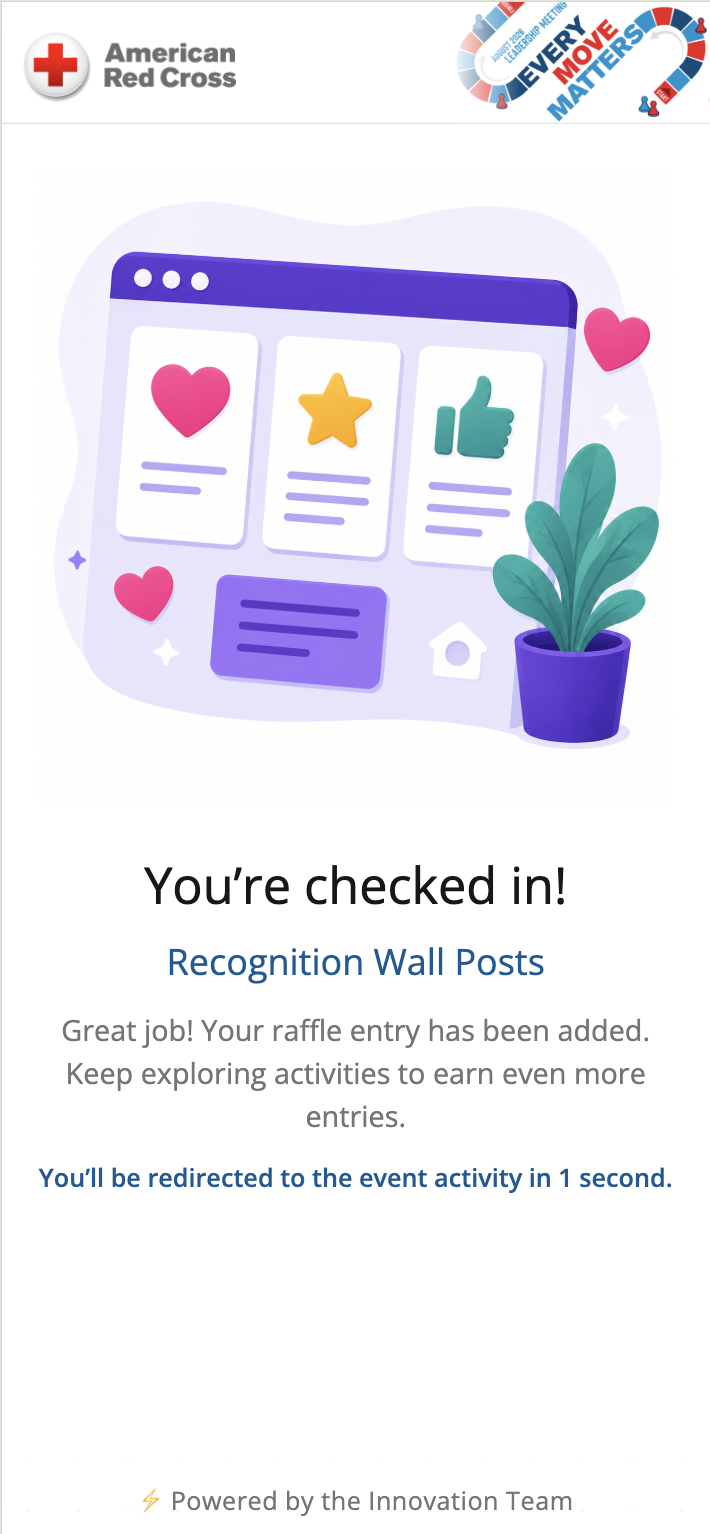
Running, yoga and creative activities use a consistent confirmation flow. The screen names the activity, confirms the raffle entry and explains how to return to the leaderboard.
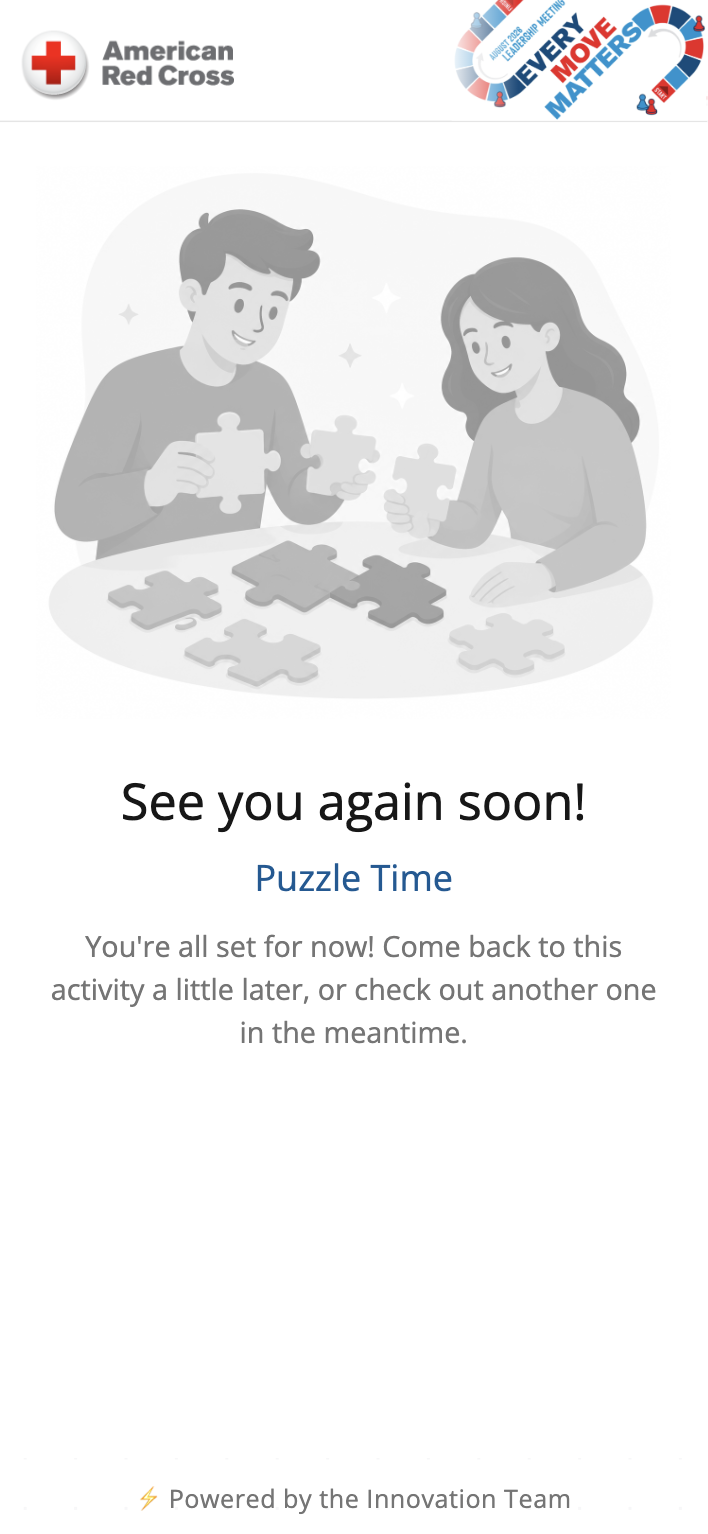
A completed activity limit, a waiting period and a redirect need different messages. Each state tells the attendee whether to choose another activity, return later or continue to the linked event experience.
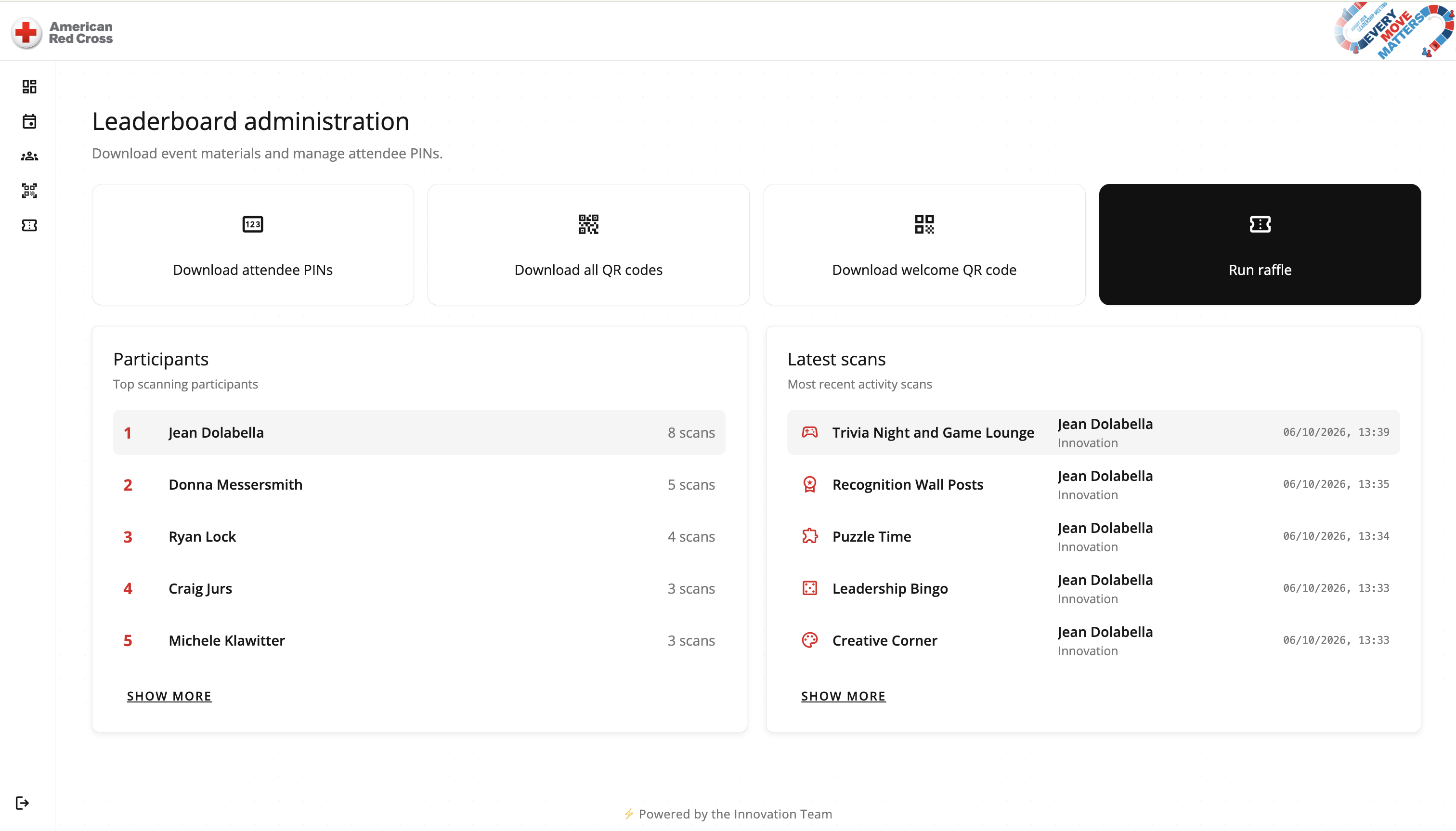
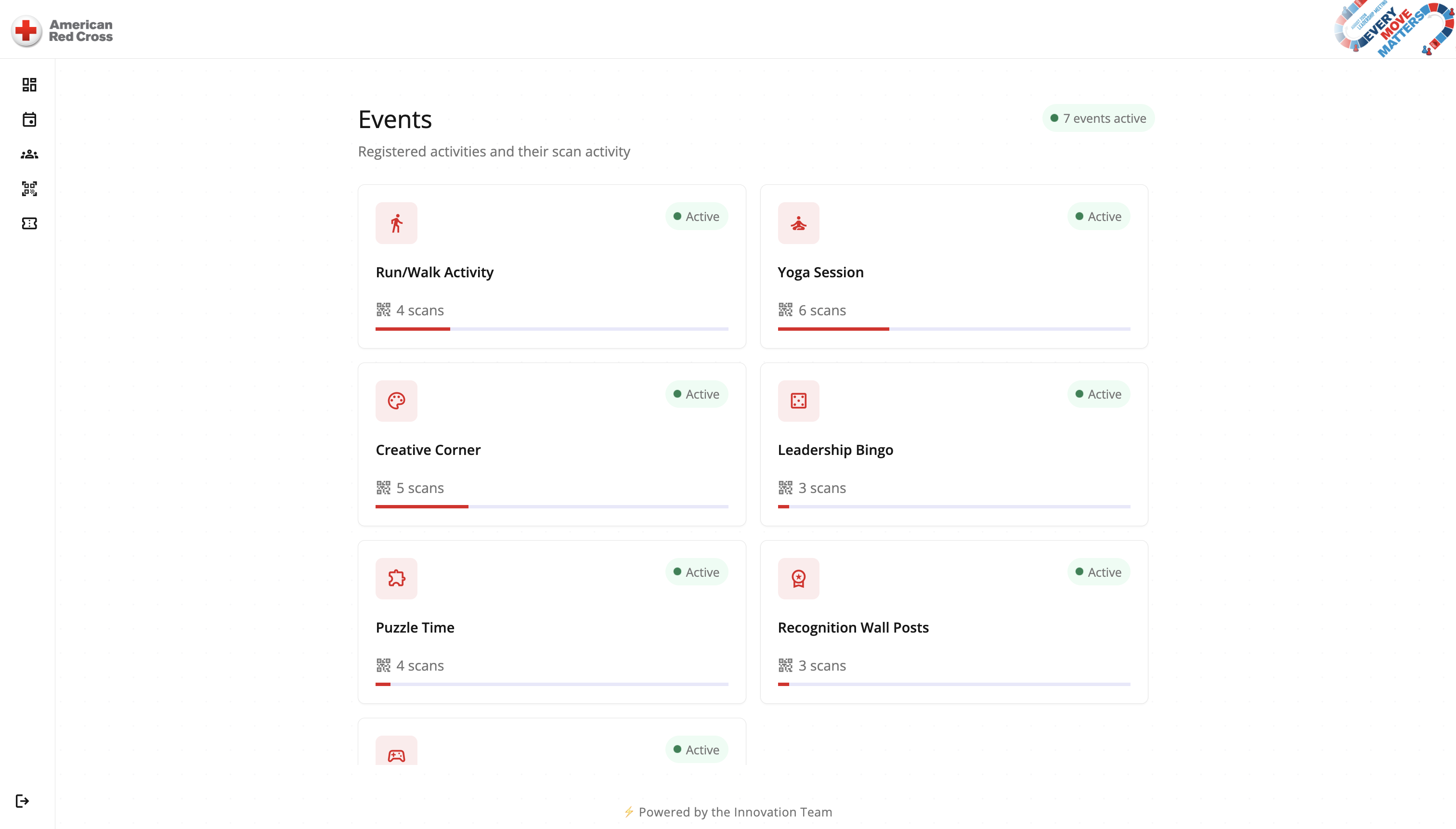
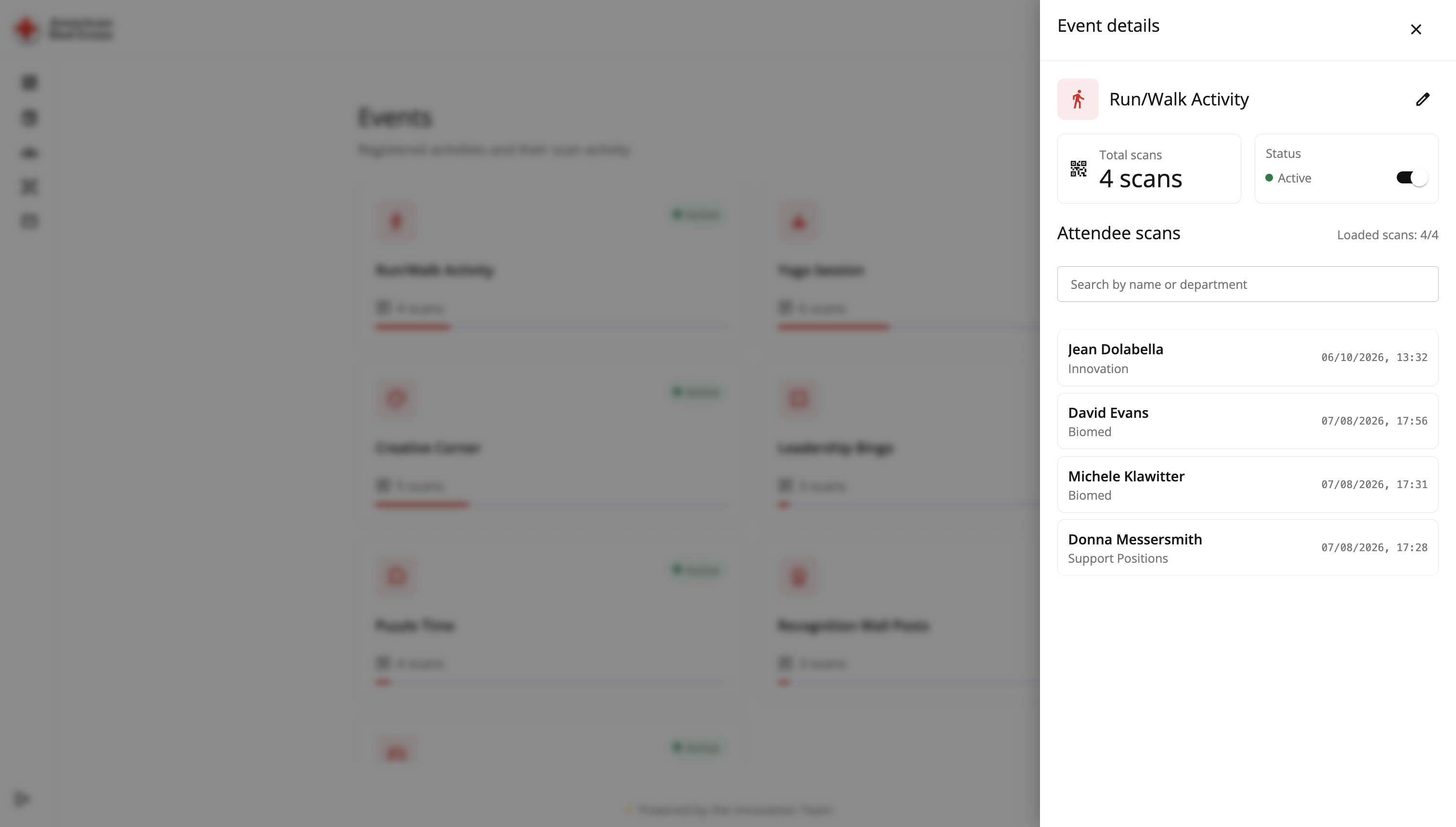
The administration overview combines PIN and QR downloads with recent scans. Activity cards and their detail panels then connect totals to the people and timestamps behind them.
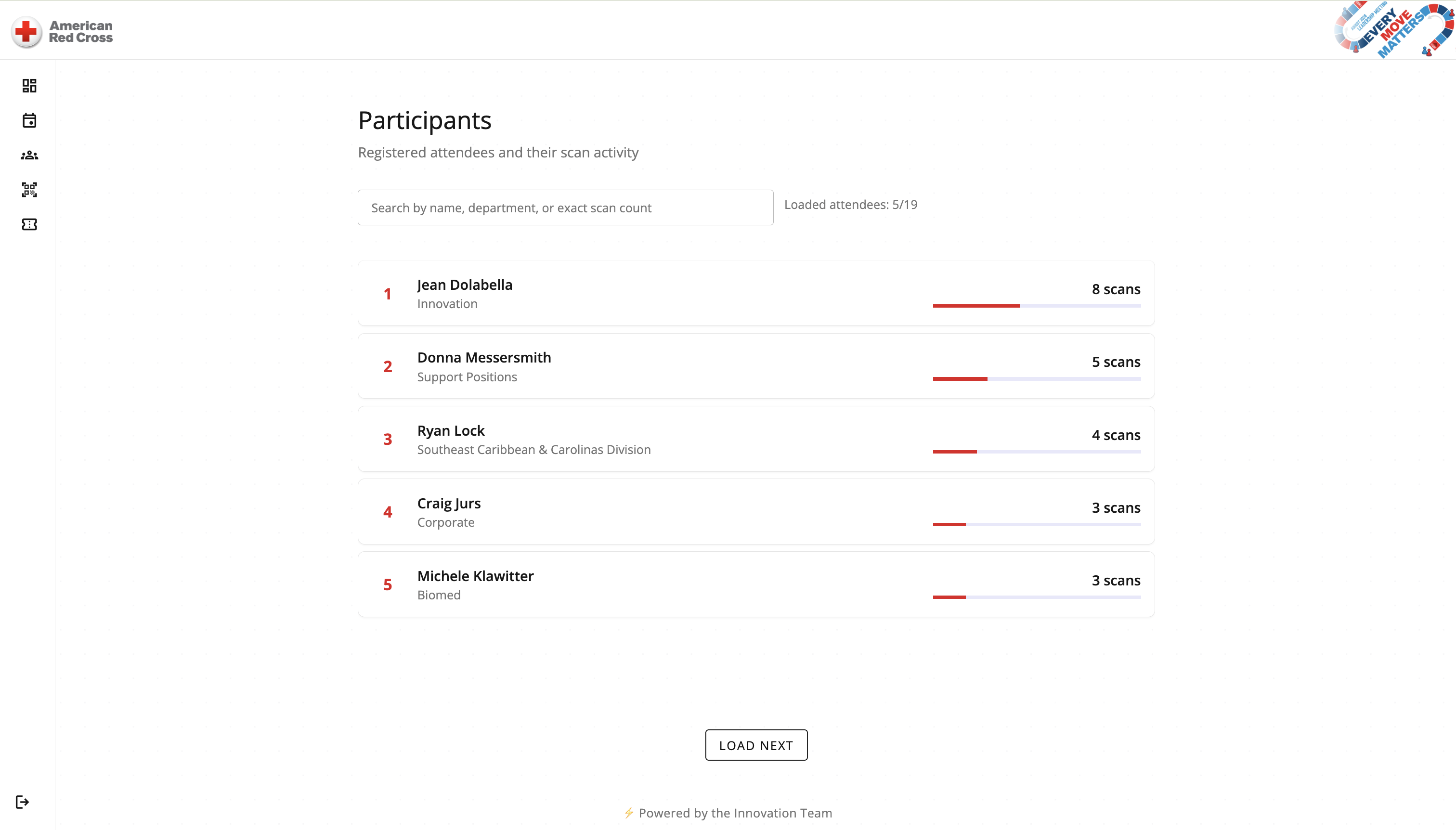
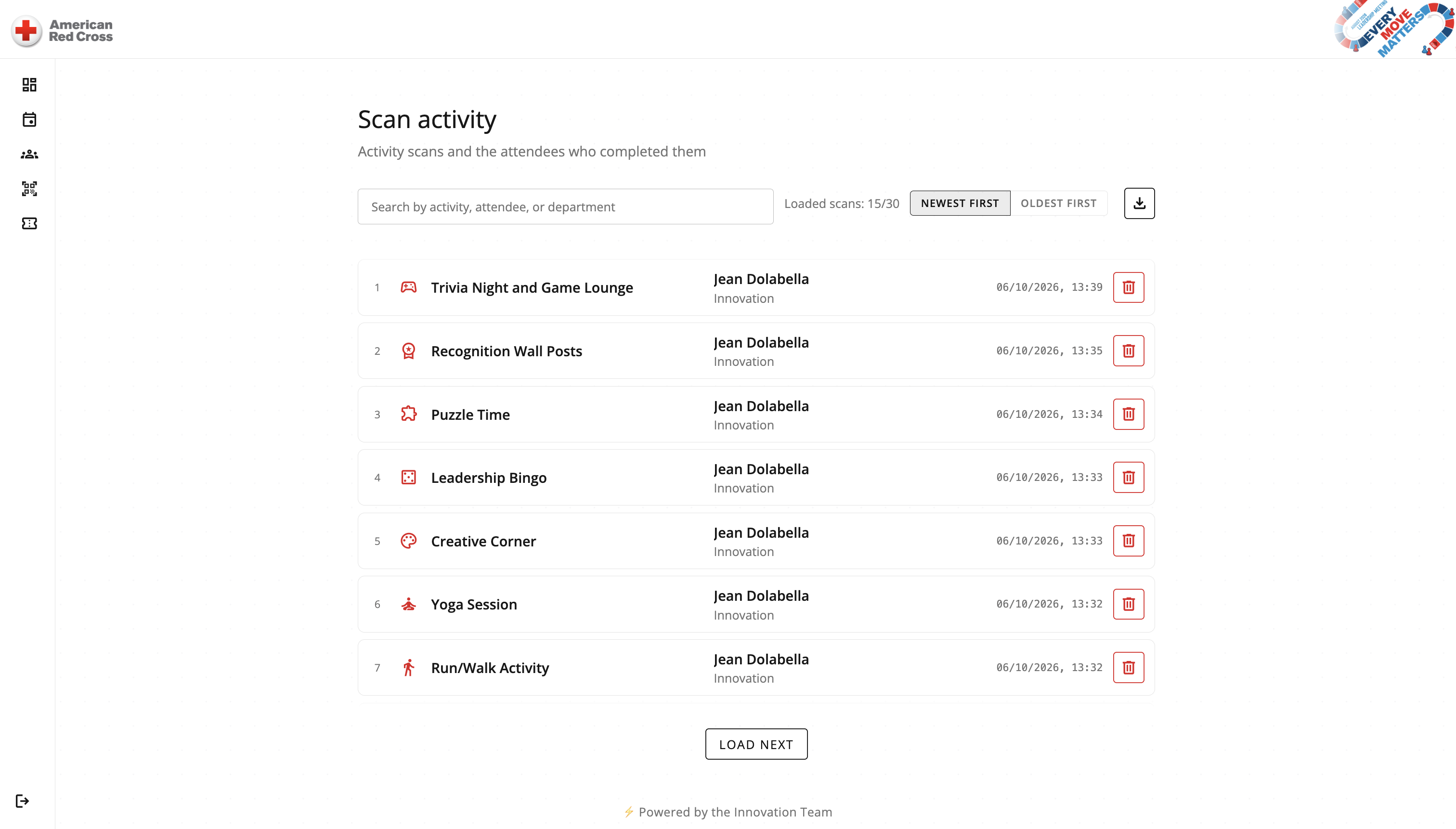
Participant search answers who took part; the scan log explains when and where. Name, department, activity and time are available for review, with sorting and export in the log.
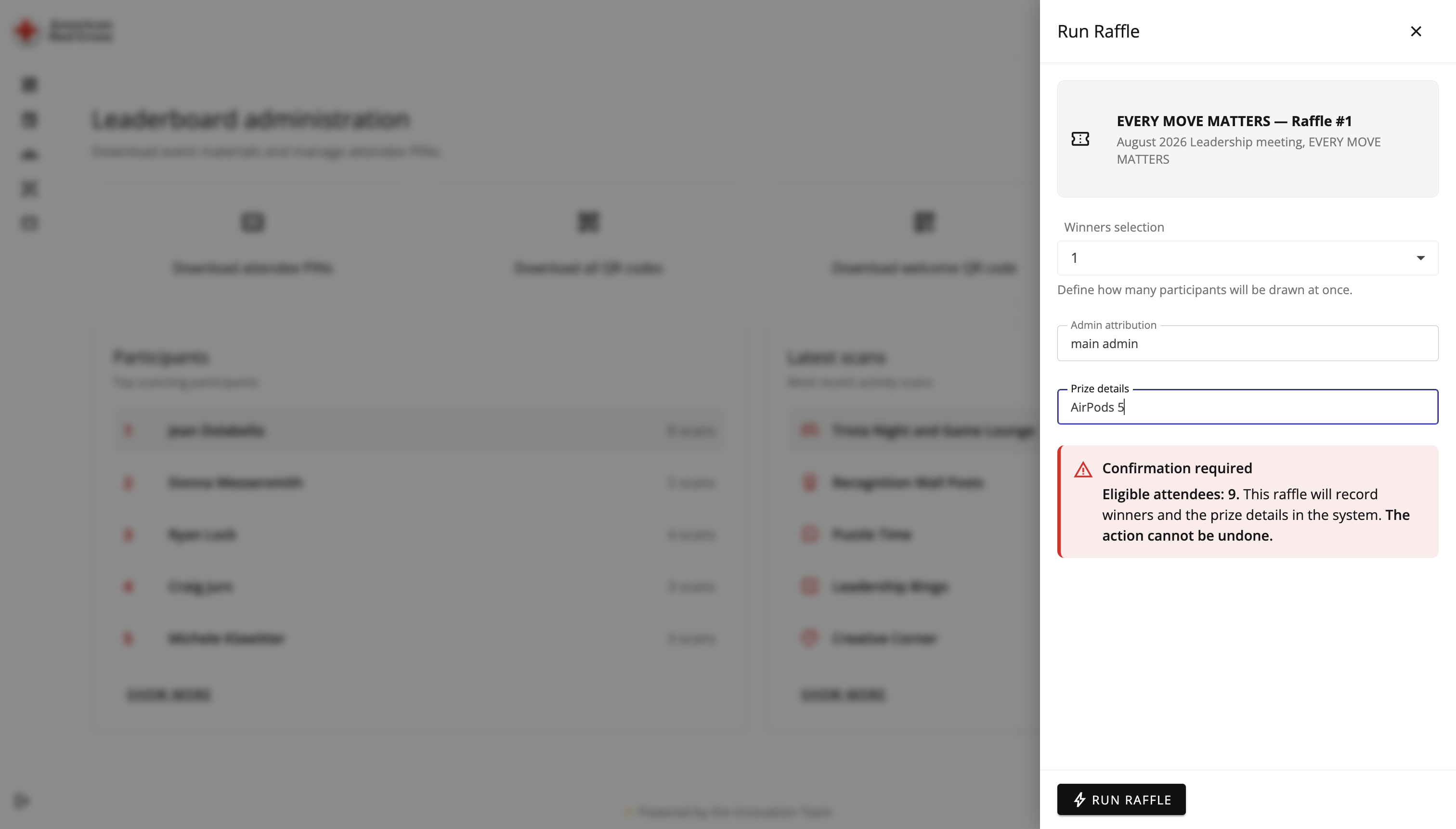
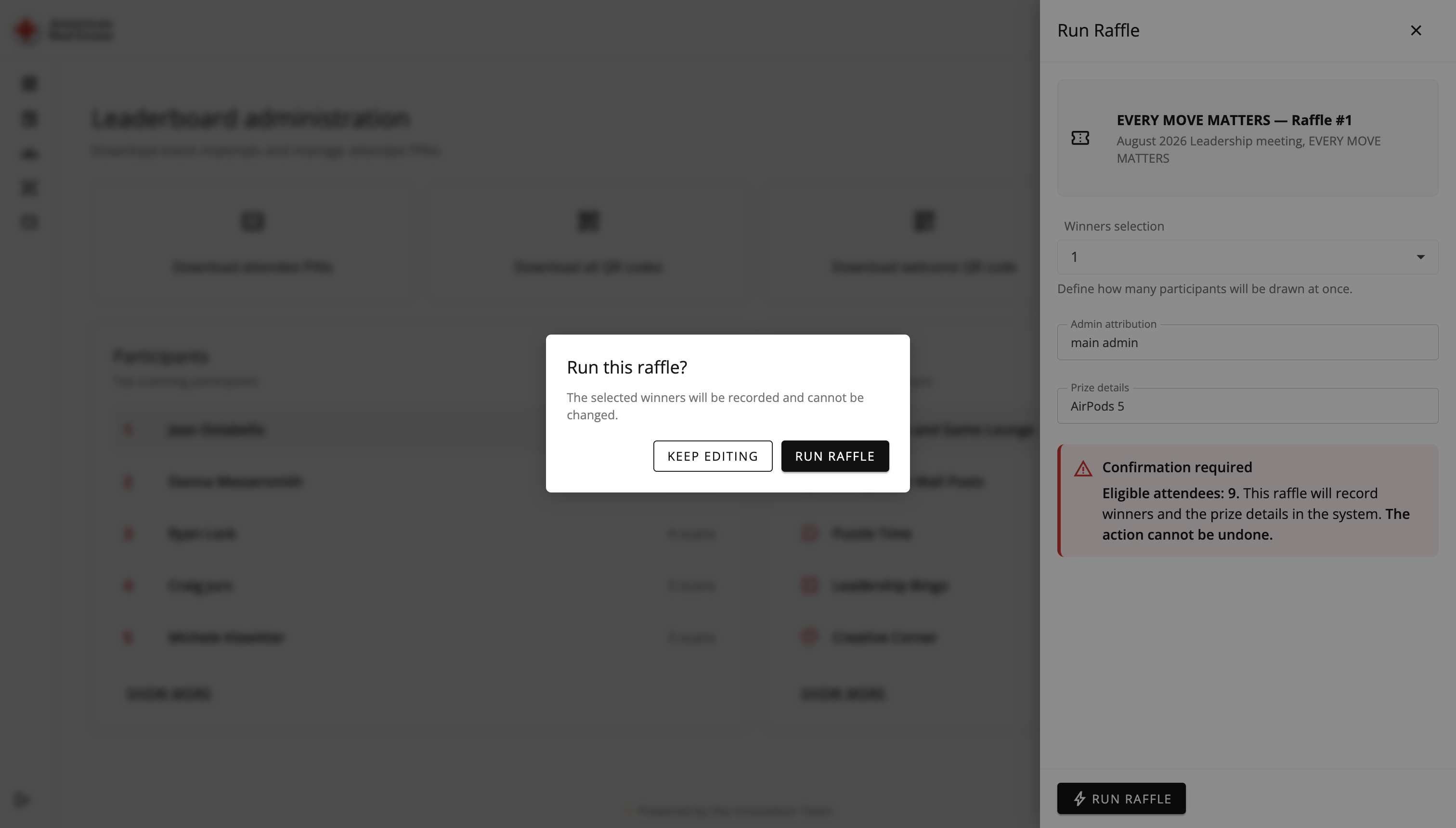
The organiser specifies the prize, administrator and number of winners, then reviews the eligible participant count. A separate confirmation marks the point at which the result will be recorded.
The reveal moves from the participant list to a highlighted winner and congratulations screen. The prize badge remains in the leaderboard as new activity scans arrive.
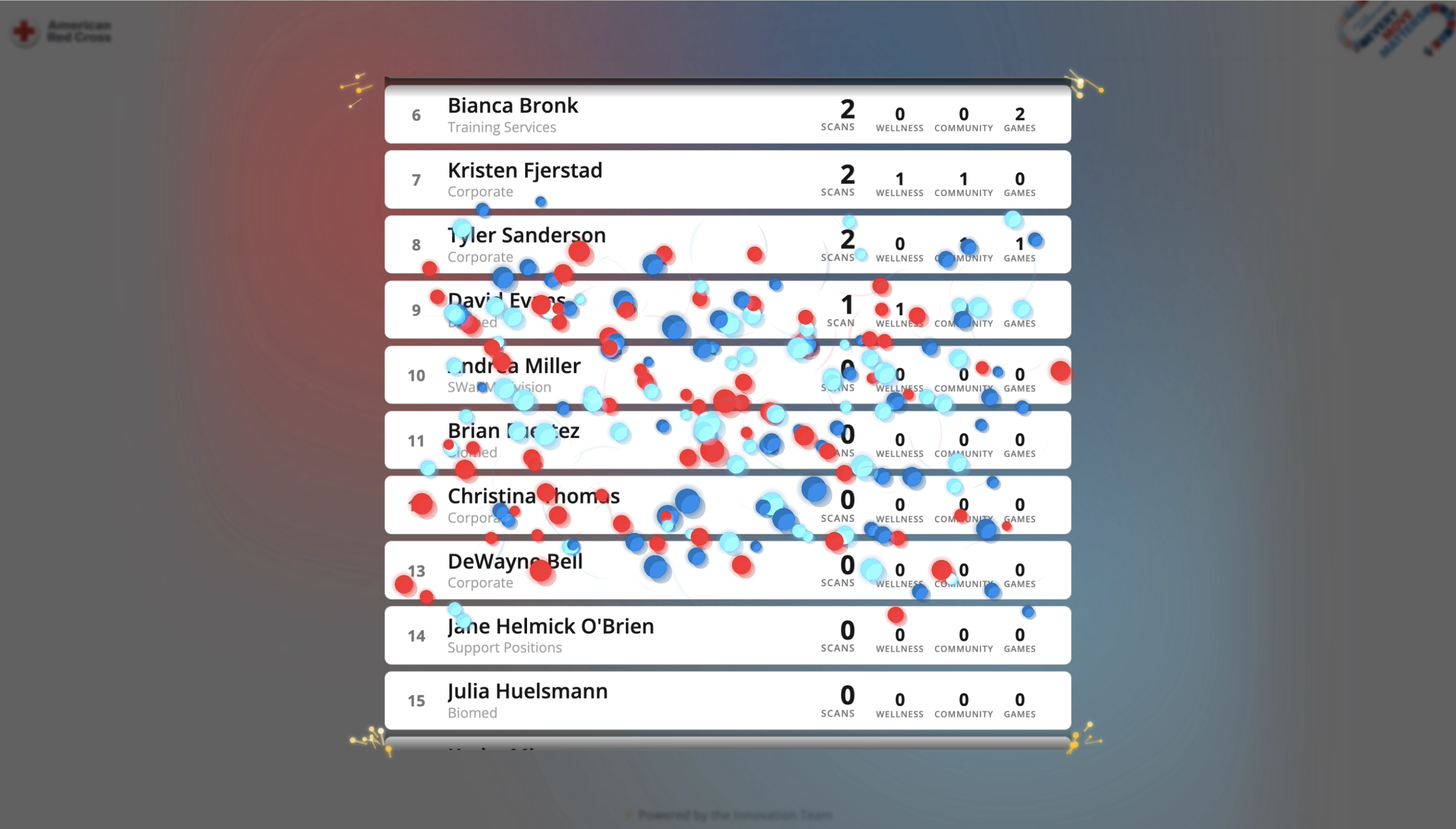
The draw presentation uses the participant list and event colours to make the reveal a visible part of the shared experience.
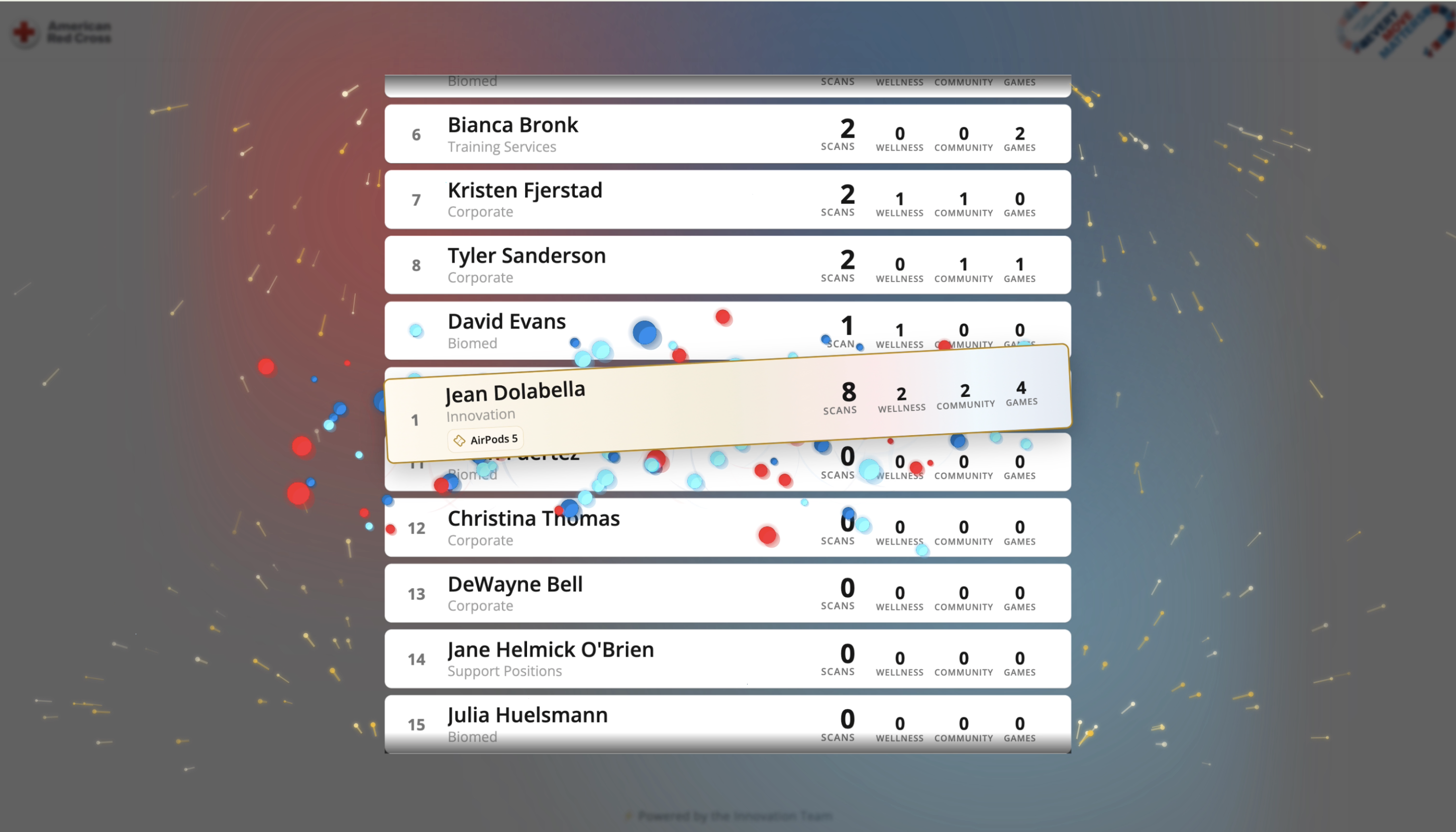
The winner’s card is highlighted over the participant list, with the prize label attached to the revealed result.
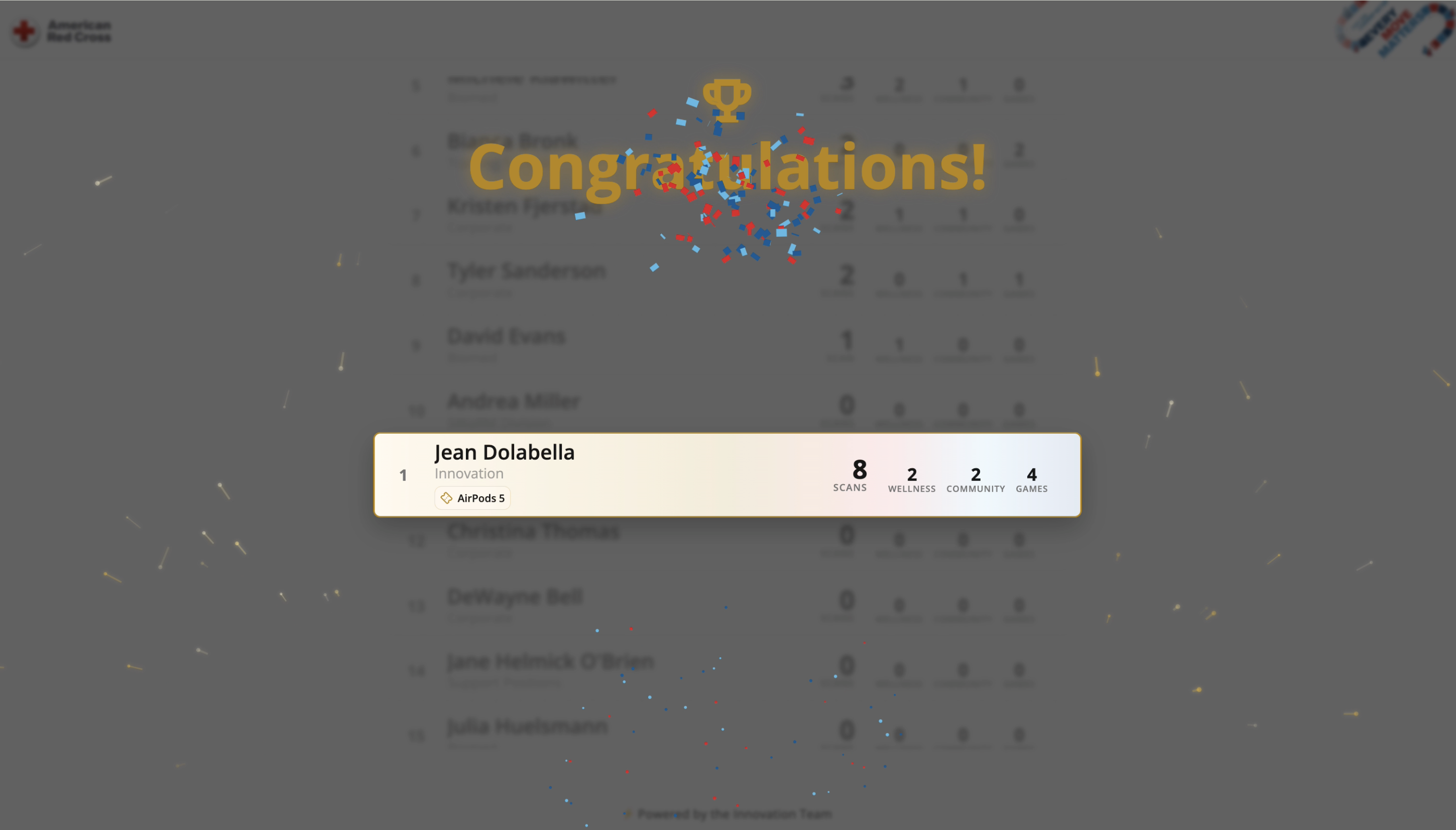
The congratulations view puts the selected participant and prize at the centre of the event display.
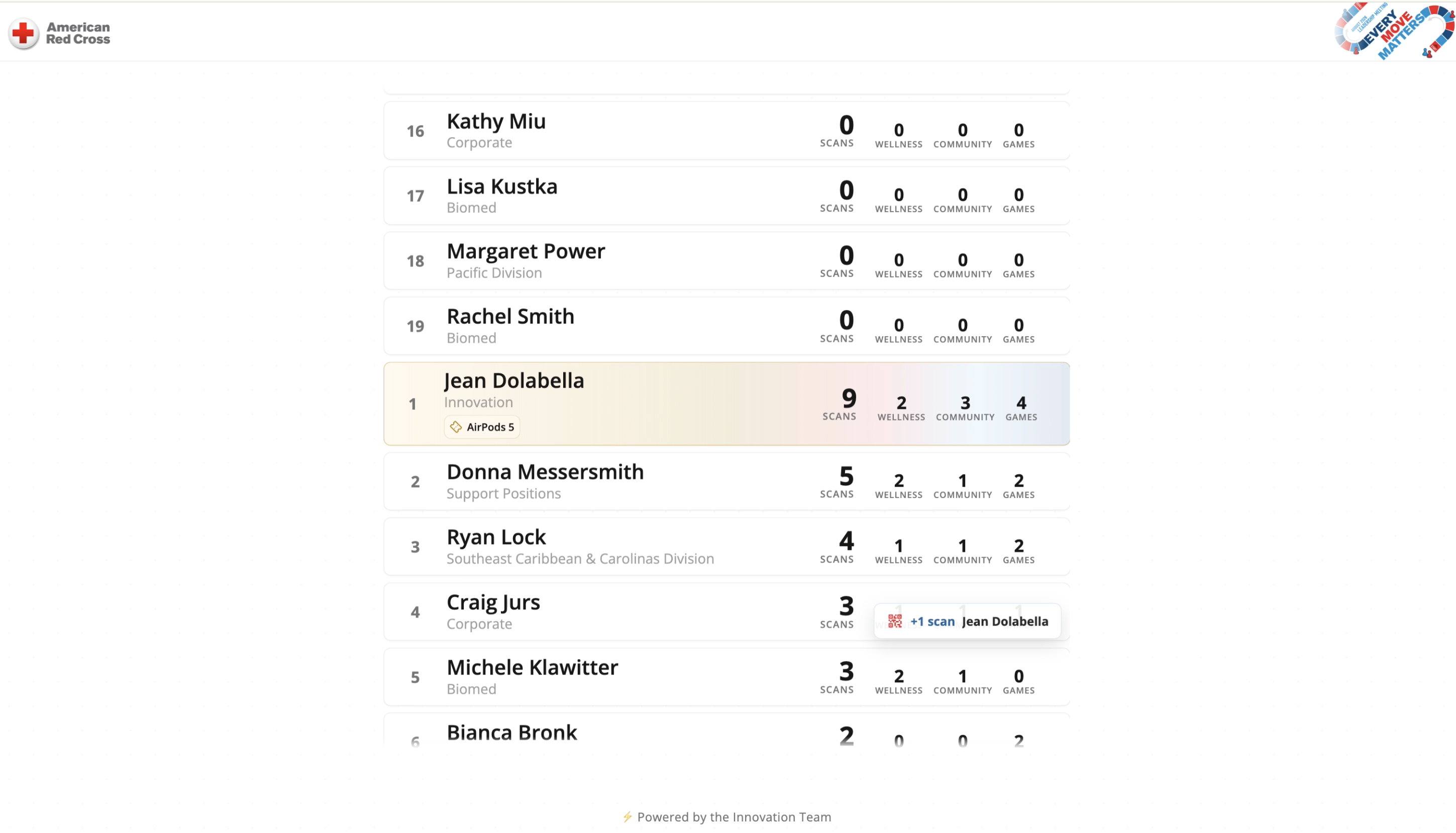
The leaderboard retains the winner’s prize badge while showing a new scan notification and updated participation totals.
Organisers generate QR codes for event stations. Each scan identifies the activity and event before the scoring path evaluates the participant’s request.
The original edition checks that the event is active, the code is valid and the participant has not already received points for that activity. A database uniqueness rule also guards the participant–activity–event record.
SignalR sends updated standings to connected phones and event displays. Individual activity histories explain the recorded total, so the participant’s position has a traceable basis.
The administration workspace brings activity preparation, participation monitoring and individual records together. When the event closes, the recorded scores provide the basis for the final ranking.
Point-award commands and ranking queries have separate handling paths. The live display receives the result of scoring; it does not decide whether a scan earns points.
Event interfaces, validated scoring and live updates around a shared participation record.
Blazor Web App and Radzen UI provide participant, leaderboard and organiser views.
.NET processes activity and scoring. SignalR distributes the ranking updates to connected displays.
Entity Framework Core connects scoring services to Azure SQL Database and the recorded event activity.
QR Coder and SkiaSharp generate and render activity codes for the event stations.
Azure services host the application infrastructure used during the event.
Bring your event format, activity rules and display needs. We can shape the participant journey, organiser workspace and scoring checks around the way your event runs.
Plan an event platform